Download & install BucketDock

Current public releases are unsigned developer-preview builds. Download the DMG that matches your Mac, drag BucketDock into Applications, and use the first-launch steps below if macOS blocks the app after download.

Ad-hoc signed for development · Not Apple Developer ID signed · Not notarized yet
macOS notice. BucketDock is not yet signed with Apple Developer ID and is not notarized. macOS may show “BucketDock.app” is damaged or refuse to open it after download. That is expected for the current developer-preview build.

macOS · Apple Silicon

For M1, M2, M3 and newer Macs. Download the latest DMG.

Get .dmg (aarch64)

macOS · Intel

For Intel-based Macs. Download the latest DMG.

Get .dmg (x86_64)

From source

Clone the repository and build it locally with pnpm tauri build.

Build instructions →

How to open the current preview build

Install the app normally first. Only use Terminal if macOS blocks the first launch.

  1. Download the latest DMG from GitHub Releases https://github.com/bucketdock/bucketdock/releases .
  2. Open the DMG and drag BucketDock.app into Applications.
  3. If you see a damaged or blocked-app message, open Terminal.app from ApplicationsUtilitiesTerminal.
  4. Paste the commands below and press Return.
xattr -dr com.apple.quarantine /Applications/BucketDock.app
open /Applications/BucketDock.app

You only need to run these commands after moving BucketDock into Applications. If you later replace the app with a newer downloaded build, you may need to run them again.

What these commands do

xattr -dr com.apple.quarantine ... removes the quarantine attribute that macOS added because the app came from the internet.

open ... launches BucketDock immediately after the quarantine flag is removed.

These commands touch only /Applications/BucketDock.app. They do not disable Gatekeeper for the rest of your Mac.

What you may see on first launch

These dialogs are normal for the current preview build and are the ones most users will see first.

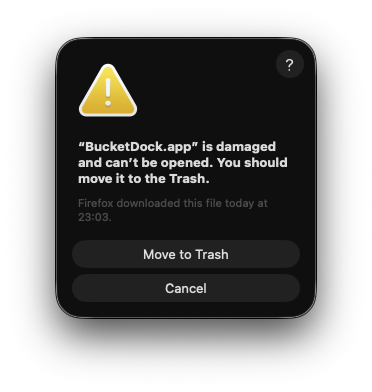
macOS warning dialog saying BucketDock.app is damaged and should be moved to the Trash

The “BucketDock.app is damaged” warning

This happens because the current public build is a developer preview. It is not Apple Developer ID signed and not notarized yet, so macOS keeps it in quarantine after download.

After you drag the app to Applications, open Terminal.app and run:

xattr -dr com.apple.quarantine /Applications/BucketDock.app
open /Applications/BucketDock.app

Terminal is located at ApplicationsUtilitiesTerminal.

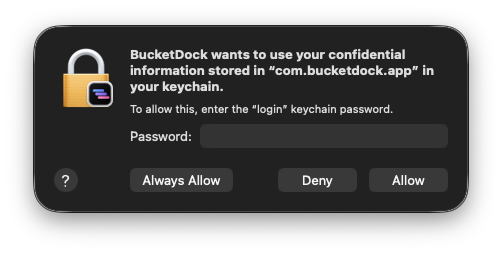
macOS Keychain permission prompt asking whether BucketDock may access credentials stored under com.bucketdock.app

The Keychain access prompt

This popup is macOS asking whether BucketDock may store and read your S3 secrets in the macOS Keychain under com.bucketdock.app.

  • Always Allow is the smoothest option if you want saved connections to keep working without repeated prompts.

The password field is your Mac login password because the request targets your login keychain.

Release notes

See the GitHub releases page for the full changelog. Releases are managed with Release Please, so each version page lists the commits that landed.